
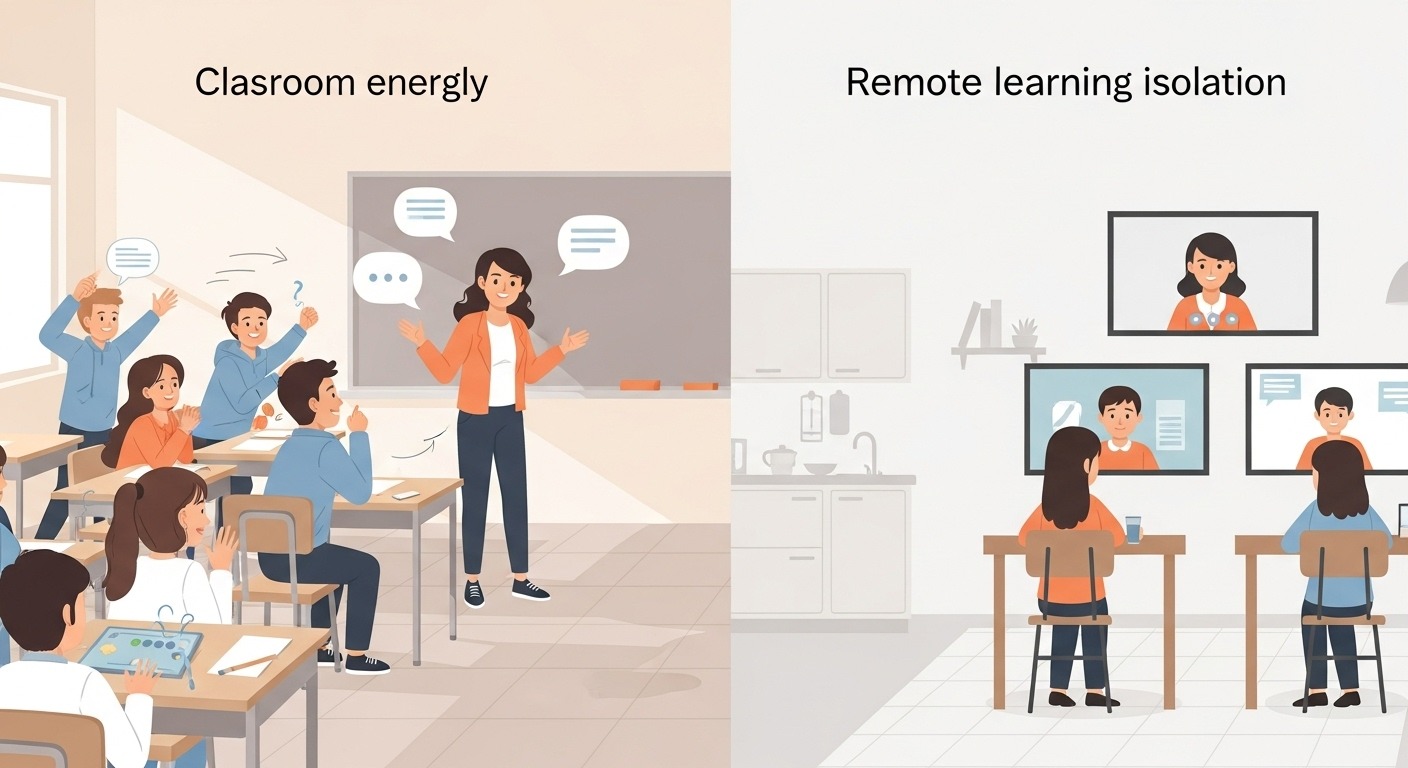
JANUARY 2026 broke me a little bit.
One day, I was circulating around my classroom while students yelled at each other during a heated round of Gimkit Trust No One. The next day, I was staring at a grid of black Zoom rectangles, desperately trying to figure out how to recreate that energy through a laptop screen while someone’s little brother wandered through the background eating cereal.
Gimkit had been my secret weapon in person. Could it possibly work when my students were scattered across the city, learning from bedrooms and kitchen tables and, in one memorable case, a closet?
Turns out: yes. But it took me a solid two months of trial, error, and occasional crying to figure out how to make it actually effective instead of a chaotic mess.
Three years later, remote learning isn’t the emergency scramble it once was—it’s a normal part of how many of us teach, whether for snow days, quarantine situations, hybrid models, or fully online courses. And Gimkit remains one of the best tools in my remote arsenal.
Here’s everything I’ve learned about making it work when students aren’t in the same room as you.
The Fundamental Challenge: Energy Doesn’t Translate Automatically
Let’s be honest about what we’re dealing with here.
In person, Gimkit runs on collective energy. Students feed off each other’s reactions—the groans when someone steals first place, the gasps when an impostor gets caught, the trash talk across tables. The game creates a shared experience that generates its own momentum.
Remote learning strips all of that away.
Instead of one classroom, you have thirty separate rooms. Students can’t see each other’s faces (or choose not to). The audio delay makes real-time reaction impossible. The social pressure that motivates participation evaporates when nobody knows if you’re actually playing or scrolling TikTok in another tab.
I’m not saying this to be discouraging. I’m saying it because understanding the problem is the first step to solving it.
Everything I’m about to share comes down to one core principle: you have to intentionally rebuild the elements that happen naturally in person.
Technical Setup: Getting the Basics Right
Before we talk strategy, let’s make sure the logistics work.
Share Your Screen, But Strategically
During remote Gimkit sessions, I share my screen showing the game dashboard—the leaderboard, the timer, and the game status. This gives students a shared visual anchor and lets them see the competition unfolding in real time.
But here’s the trick: I only share when the game is actually running. During instructions and setup, I stop sharing so students can see my face. Human connection first, game second.
Some teachers prefer to share a different screen entirely while playing—maybe a hype playlist, a countdown timer, or just a static “Game in Progress!” image. Experiment with what works for your vibe.
The Two-Device Reality
Most students need two devices to play Gimkit remotely: one to stay connected to your video call, one to actually play the game.
This is not optional. If they play on the same device as Zoom, they’ll constantly switch between tabs, miss your announcements, and get frustrated.
I tell students upfront: “Phone for Gimkit, computer for Zoom. If you only have one device, Gimkit goes in a browser tab, and you’ll need to listen carefully for when I call everyone back.”
Is this ideal? No. But it works.
Audio Management
Here’s where remote Gimkit gets tricky. In person, I’m narrating the action, calling out when someone takes the lead, reacting to close finishes. That commentary creates energy.
On Zoom, if everyone’s muted (as they should be for sanity), my commentary is just me talking into a void.
My solution: I ask students to react in the chat. Not full sentences—just emojis. A “😱” when someone gets eliminated, “🔥” when they’re on a streak, “💀” when they mess up. It’s not the same as live reactions, but it creates a visible pulse of activity that makes the game feel alive.
During Trust No One meetings specifically, I unmute everyone. Yes, it’s chaos. Yes, people talk over each other. That’s the point—it’s supposed to feel like a real discussion. I use Zoom’s “raise hand” feature to manage who speaks during accusations.
Choosing the Right Game Modes for Remote Play
Not all Gimkit modes translate equally well to remote learning. Here’s my breakdown based on extensive field testing:
Trust No One: Still the King (With Adjustments)
This remains the most engaging mode for remote play, but it requires active facilitation.
In person, I can step back and let the discussion flow. Remotely, I become a talk show host—calling on specific people to share their suspicions, prompting quiet students to weigh in, keeping the conversation moving when it stalls.
I also give students more time during voting phases. The audio delay means they need extra seconds to hear accusations and respond. I usually count down from 30 instead of letting the automatic timer rush them.
One more adjustment: I read accusation statements out loud even though they appear on screen. “Okay, CoolDude42 is accusing SpaceCat of being the impostor because ‘they missed an easy question about mitosis.’ SpaceCat, how do you respond?” This adds drama and ensures everyone is following along.
Classic Mode: The Reliable Workhorse
For straightforward review sessions where I need something low-maintenance, Classic mode is perfect.
I project the leaderboard, mute everyone, and let them play for 10-15 minutes while I monitor. Periodically, I’ll call out position changes: “Oh, Mariana just passed Derek for third place. Derek, you gonna let that happen?”
The key is keeping your own energy up. If you go silent, students assume you’ve checked out and permission themselves to do the same.
Floor is Lava: Proceed with Caution
This mode is high-stress in person and even more so remotely. Students who fall early have nothing to do while waiting for the next round, and the elimination mechanic is brutal when you can’t see their disappointed faces.
I use it sparingly, usually as a quick warm-up rather than a main activity. Three rounds maximum before switching to something else.
Team Mode: Secretly Great for Remote
I initially skipped Team Mode for remote play, assuming it required in-person collaboration. I was wrong.
Breakout rooms changed everything. I assign teams, throw them into breakout rooms, and let them discuss strategies while playing together. The smaller groups make participation more accountable—harder to hide when you’re in a room with just three other people.
When I bring everyone back together, teams report out on their experience, creating organic discussion opportunities.
Modes I Avoid Remotely
Capture the Flag feels too chaotic without shared physical space. Infinity Mode drags on forever without the social pressure to stay focused. Don’t Look Down creates too many frustrated students sitting out.
Your mileage may vary, but those have consistently underperformed for me in remote settings.
Building Engagement When You Can’t See Their Faces
The hardest part of remote Gimkit isn’t the technology—it’s maintaining engagement when you have no idea what students are actually doing behind their screens.
Pre-Game Rituals
I never just dive in. We always start with a structured warm-up: predictions.
“Okay, everyone, type in chat who you think is going to win today. No changing your answer!”
This creates investment before a single question gets answered. Students want to see if their prediction was right, which keeps them paying attention to the leaderboard.
Mid-Game Check-Ins
Every 7-8 minutes during longer games, I interrupt briefly. “Quick check-in! Type a number 1-10 in the chat for how confident you’re feeling about this material right now.”
This serves multiple purposes: it tells me if students are still present, gives me formative data about comprehension, and reminds everyone that an actual teacher is watching.
The Strategic Callout
When the leaderboard updates, I pick specific students to mention—especially those who don’t usually stand out.
“Wait, is that Carlos in 4th place? Carlos, have you been secretly studying?”
Hearing their name reminds students they’re visible, even remotely. And kids who aren’t usually top performers love getting recognition.
Post-Game Debrief
Never just end the game and move on. Spend at least 3-4 minutes discussing what happened.
“Who can explain why they struggled with the question about Napoleon? I saw almost everyone miss that one.”
This transforms Gimkit from a game into a learning experience. The debrief is where retention actually happens.
Preventing and Handling Cheating
Let’s address the elephant in the room. When students play from home, cheating becomes infinitely easier. They can Google answers, text friends, or have a parent standing behind them, feeding responses.
I’ve made peace with this reality, but I’ve also developed strategies to minimize its impact.
Design Better Questions
The best anti-cheating measure is asking questions that Google can’t easily answer.
Instead of “What year did World War II end?” try “A historian argues that WWII actually ended in 1946, not 1945. Which of these reasons would best support that claim?”
Conceptual questions that require application of knowledge are harder to cheat on than straight recall.
Emphasize Competition Over Scores
I deliberately don’t grade Gimkit performance. It’s practice, not assessment.
When I do this, students have less incentive to cheat—they’re competing for bragging rights, not points in the gradebook. And honestly? If a kid is Googling every answer, they’re still being exposed to the content. That’s nothing.
Embrace “Open Notes” Reality
Sometimes I just lean into it. “This is an open-notes Gimkit. If you don’t know something, check your notes before guessing.”
This reframes potential cheating as expected behavior, and students who prepared good notes feel rewarded instead of disadvantaged.
Speed as a Deterrent
One setting I always turn on for remote play: show timing. When students know their speed is being tracked, they’re less likely to pause and Google because slow answers hurt their ranking.
It’s not foolproof, but it adds friction to the cheating process.
Timing and Pacing Adjustments
Remote learning requires different pacing than in-person instruction. Attention spans are shorter, distractions are everywhere, and students are often sitting in the same chair all day.
Shorter Bursts
In person, I might run a 25-minute Gimkit session as the main activity. Remotely, I rarely go past 15 minutes.
The exception is Trust No One, which has enough built-in variety (questions, meetings, discussion) to sustain longer engagement.
Strategic Placement
I’ve had the best luck using Gimkit in the middle of a remote session, not the beginning or end.
Beginning of class: students are still logging in, getting settled, and figuring out their audio. Chaos.
End of class: students have one foot out the door mentally and will disengage the second it ends.
Middle of class: they’ve warmed up, you have built-in time for debrief, and it serves as an energy boost when attention would normally flag.
Buffer Time
Build in more transition time than you think you need. What takes 30 seconds in person (explaining the game, getting everyone to the join screen) takes 2-3 minutes remotely. Someone always has tech issues. Someone always “can’t find the code” even though it’s been on screen for two minutes.
I tell myself the activity will take 20 minutes and build 25 minutes into my lesson plan. Every single time.
Special Situations and Edge Cases
When Students Have Unreliable Internet
Some students will have WiFi that drops constantly. For them, Gimkit can become more frustrating than fun.
My solution: I let those students play in “chill mode”—I tell them not to worry about the leaderboard and just answer questions at whatever pace their connection allows. They’re still getting practice; they’re just not competing for first.
When You Have a Very Small Class
Gimkit’s energy depends partly on numbers. With 25 students, there’s always leaderboard drama. With 6 students, it can feel empty.
For small remote classes, I create teams of 2-3 rather than individual play. This creates meaningful competition with fewer people.
When You’re Teaching Asynchronously
Gimkit has an assignment mode that works well for asynchronous learning. Students complete the kit on their own time, and you see their results later.
It’s not as engaging as live play—the competition element is limited to personal high scores—but it ensures students interact with the material even when you can’t run a live session.
I set these up with required completion for participation credit, but don’t grade for accuracy. The goal is engagement, not assessment.
When Students Refuse to Turn On Cameras
This is the eternal struggle. I’ve stopped battling over cameras during Gimkit specifically because I’ve found engagement doesn’t actually correlate with camera status.
Some of my most active Gimkit players keep cameras off but are clearly locked in based on their performance and chat participation. Some students with cameras on are visibly doing something else.
I focus on behaviors I can actually measure: Are they playing? Are they responding in chat? Did they participate in the debrief? Those tell me more than a camera ever could.
Making It Sustainable: Teacher Self-Care
I want to end on something nobody talks about enough.
Remote teaching is exhausting. Adding interactive activities like Gimkit helps engagement, but it also requires more energy from you—more monitoring, more talking into the void, more technological troubleshooting.
Don’t run Gimkit every single day. You’ll burn out, and students will get bored with it anyway.
I aim for once or twice a week during remote instruction. Enough to maintain engagement but not so much that it becomes a crutch or loses its novelty.

And on days when tech fails—because it will—have a backup plan. A discussion question, a quiet independent activity, something that doesn’t require any platform to work. The most resilient remote teachers are the ones who don’t panic when technology betrays them.
The Bottom Line
Gimkit absolutely works for remote learning. I’ve seen it revive dead Zoom rooms and create genuine excitement in students who I could barely get to show up.
But it’s not plug-and-play. You have to rebuild the energy, manage the technical layers, and adjust your facilitation style.
Start with Classic mode to get comfortable with the logistics. Graduate to Trust No One once you have the hang of remote facilitation. Experiment with timing and pacing until you find what works for your students.
And when it’s 10 PM, and you’re prepping for tomorrow’s remote session, remember: you don’t have to reinvent the wheel every time. Import an existing kit, modify three questions, and call it a night.
Your students will be happy to see something fun on their screens. Perfection isn’t the goal—engagement is. And you’ve got this.