
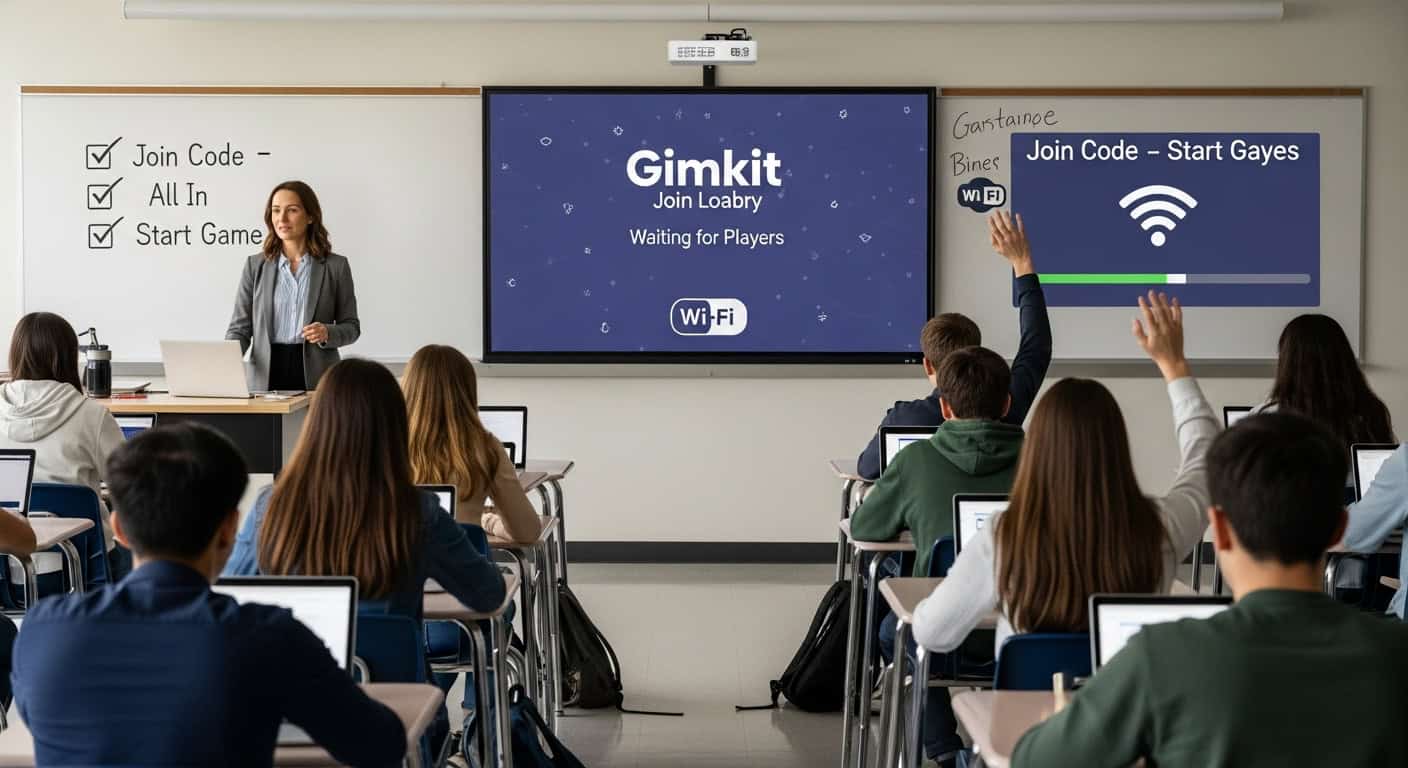
The first time I tried to run a live Gimkit game, I spent twenty-three minutes troubleshooting why half my students couldn’t join, accidentally started the game before anyone was ready, watched the whole thing crash when the school Wi-Fi hiccuped, and ended the period with exactly zero learning accomplished and thirty teenagers convinced I had no idea what I was doing.
They weren’t wrong.
Now, roughly 1,500 live games later, I can launch one in under ninety seconds while simultaneously taking attendance, redirecting a kid who’s trying to sneak AirPods, and answering an email from my principal. The difference isn’t talent. It’s having a bulletproof system.
Here’s exactly how to run a Gimkit live game from start to finish, with all the little details nobody tells you until you learn them the hard way.
Before Class Even Starts (The 5-Minute Prep That Saves Everything)
Step 1: Open Gimkit and find your kit
Log in at gimkit.com. Click “Library” on the left sidebar. Find the kit you want to run.
Pro tip: Favorite your most-used kits by clicking the star icon. They’ll appear at the top of your library forever. I have seventeen favorite kits and use the same eight on rotation for 90% of my games.
Step 2: Click “Play Live”
This is the big green button. Don’t click “Assign” unless you want homework mode. Don’t click “Practice” unless you want solo mode. “Play Live” is for the chaos we’re after.
Step 3: Choose your game mode
You’ll see a grid of options. Here’s the quick breakdown:
- Classic – The default. Cash, power-ups, and leaderboard.ard. Works for everything.
- Trust No One – Among Us style with traitors. Incredible for engagement, terrible for quiet classrooms.
- Boss Battle – Team mode against a monster. Perfect for test prep.
- Humans vs Zombies – Wrong answers turn you into a zombie. Great for vocabulary.
- Floor Is Lava – Pure chaos. Friday reward only.
Start with Classic if you’re new. It’s the most forgiving.
Step 4: Adjust your settings (this is where most teachers mess up)
Before you launch, scroll down and check these:
- Randomize question order: ON. Otherwise, kids share answers.wers.
- Randomize answer order: ON. Same reason.
- Show correct answer after question: ON. This is the learning part.
- Music: Your call. I turn it off because my classroom is loud enough.
- Power-ups enabled: ON, unless you want a boring game.
Step 5: Click “Create Game”
You’ll land on a waiting screen with a six-letter join code and a QR code.
Leave this screen up. Do not click anything else yet. Go get your students ready.
Getting Students Into the Game (The Part That Always Goes Wrong)
Step 6: Project the join screen
Put that code and QR code on your projector or TV. Make it visible from everywhere in the room.
The URL students need is gimkit.com/join (not just gimkit.com, not “gimkit game,” not “gimkitjoiWrite it on the board, too, because someone will ask.ll ask.
Step 7: Have them enter the code, not scan tHot take: the QR code sounds faster, but causes more problems.oblems. Half the kids don’t know how to use their camera app, half the school Chromebooks don’t even have cameras, and the scanning process takes just as long as typing six letTell them: “Go to gimkit.com/join, type the code exactly as you see it, and enter your first name only.”name only.”
Step 8: Watch the waiting room fill up
You’ll see names pop up on the screen in real time. This is your attendance. Seriously. I take attendance from this screen and never use paper.
If someone’s name shows up as “urmom420,” you have twoKick them using the X next to their name and make them rejoin with their real name.r real name.
- Let it slide and deal with it later (not recommended, but sometimes it’s 2:47 p.m. on a Friday)
Step 9: Wait until everyone is in before starting
This is the most important step that nobody follows.
The first question sets the tone. If five kids miss it because they were still typing the join code, they’re already behind, already frustrated, and already checked out. Wait the extra thirty seconds. It’sI literally count heads on the waiting screen and compare them to my seating chart.my seating chart. When the numbers match, we go.
Actually Playing the Game (What You Do During the Chaos)
Step 10: Click “Start Game”
A countdown will appear. Students will scream. The first question drops, and suddenly, your room sounds like a casino.It’s like a casino. Embrace it.
Step 11: Walk around the room
Do not sit at your desk. Walk. Look at screens. Make eye contact with kids who are struggling.
You’re not supervising; you’re coaching. If you see someone stuck on the same question for the third time, crouch down and whisper a hint. “Remember what we said about ser versus estar with locations?” Then walk away before they answer. Let them feel the victory.
Step 12: Project the leaderboard occasionally
Click the “Leaderboard” button at the bottom of your teacher screen to toggle between question vieI flip to the leaderboard every five minutes for about fifteen seconds.about fifteen seconds. Just long enough for kids to see where they stand. The competitive energy spikes every single time.
Step 13: Use the pause button strategically
If the room gets too loud, pause the game. Don’t yell over it.
Eight seconds of silence while thirty teenagers stare at their frozen screens is more powerful than any lecture on classroom management. Game resumes, volume drops.
I also pause when I see the “Most Missed” question in real time. Quick two-minute reteach, then unpause. Turns a game into an actual lesson.
Step 14: End with at least three minutes left in the period
Never run a game until the bell. Kids need time to log out, put devices away, and process what just happened.
I stop every game at the 32-minute mark maximum. “That’s game!” They groan. I ignore them. Leaving them wanting more is the goal.
After the Game (The Part That Makes It Actually Educational)
Step 15: Project final standings
Celebrate the top three. Call ouMention anyone who improved dramatically since the last time.caMy favorite move: I highlight the kid who went from 23rd place to 11th place and say, “That’s what growth looks like.”’s what growth looks like.” They remember that longer than any first-place trophy.
Step 16: Save the report
Click “Reports” after ending the game. You’ll see:
- Overall class accuracy
- Most missed questions
- Individual student scores
Screenshot the “Most Missed” list. Step 17: Reference the data, next classeOpen class open the next day with: “Yesterday, 67% of you missed the question about appositives.question about appositives. Let’s fix that.”
Instant relevance. Kids remember getting that question wrong. Now they actually want the reteach.
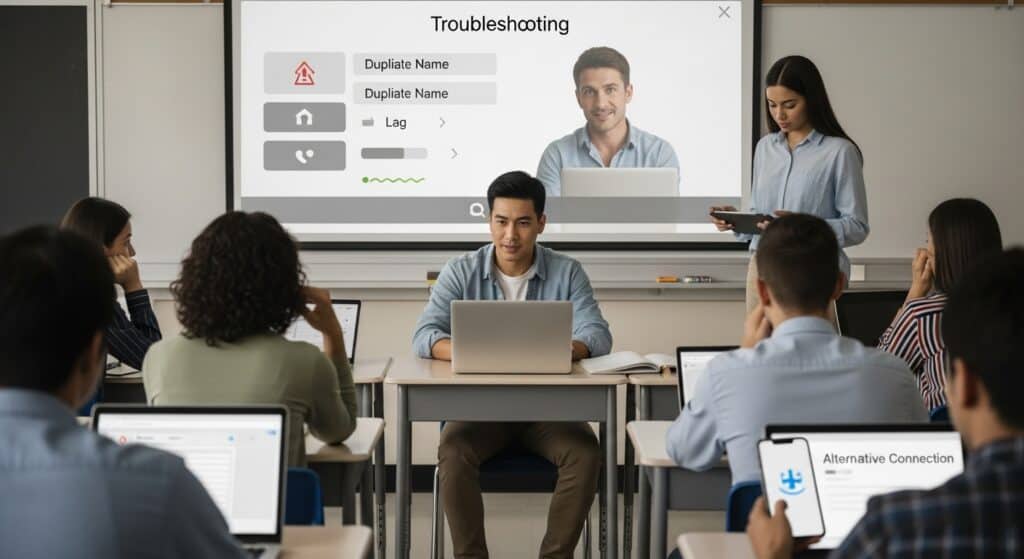
The Emergency Troubleshooting Section (Because “Half my kids can’t join.”“Half my kids can’t join.”
Check if your school’s firewall blocks Gimkit. Have them try on their phones using cellular data. If that works, it’s a network issue. Ema, “Someone’s name won’t load.”Someone’s name won’t load.”
Refresh their browser. If that doesn’t work, have them switch “The game is lagging badly.”The game is lagging badly.”
Turn off music. Reduce power-up anima“A kid joined twice with different names.” twice with different names.”
Kick the duplicate. They’re trying to cheat. Make them rejo“I accidentally ended the game early.”ally ended the game early.”
You can’t undo this. Apologize. Run a shorter second game with the same kit.
Final Thoughts From 1,500+ Games
Live Gimkit games are the closest thing I’ve found to educational magic. The energy, the competition, the way kids voluntarily replay content over and over because they want that 10x multiplier—it’s unlike anything else in edtech.
But it only workThe teachers who give up on Gimkit usually run one bad game with default settings, half the class can’t log in, and the whole thing crashes.nd the whole thing crashed. That’s not a Gimkit problem. That’s a preparation problem.
Follow these steps once. Run one smooth game. Watch your students beg for another round.
Then you’ll understand why some of us build entire unit reviews around this thing and refuse to go back to paper quizzes.
It’s worth the learning curve.
Trust me.