
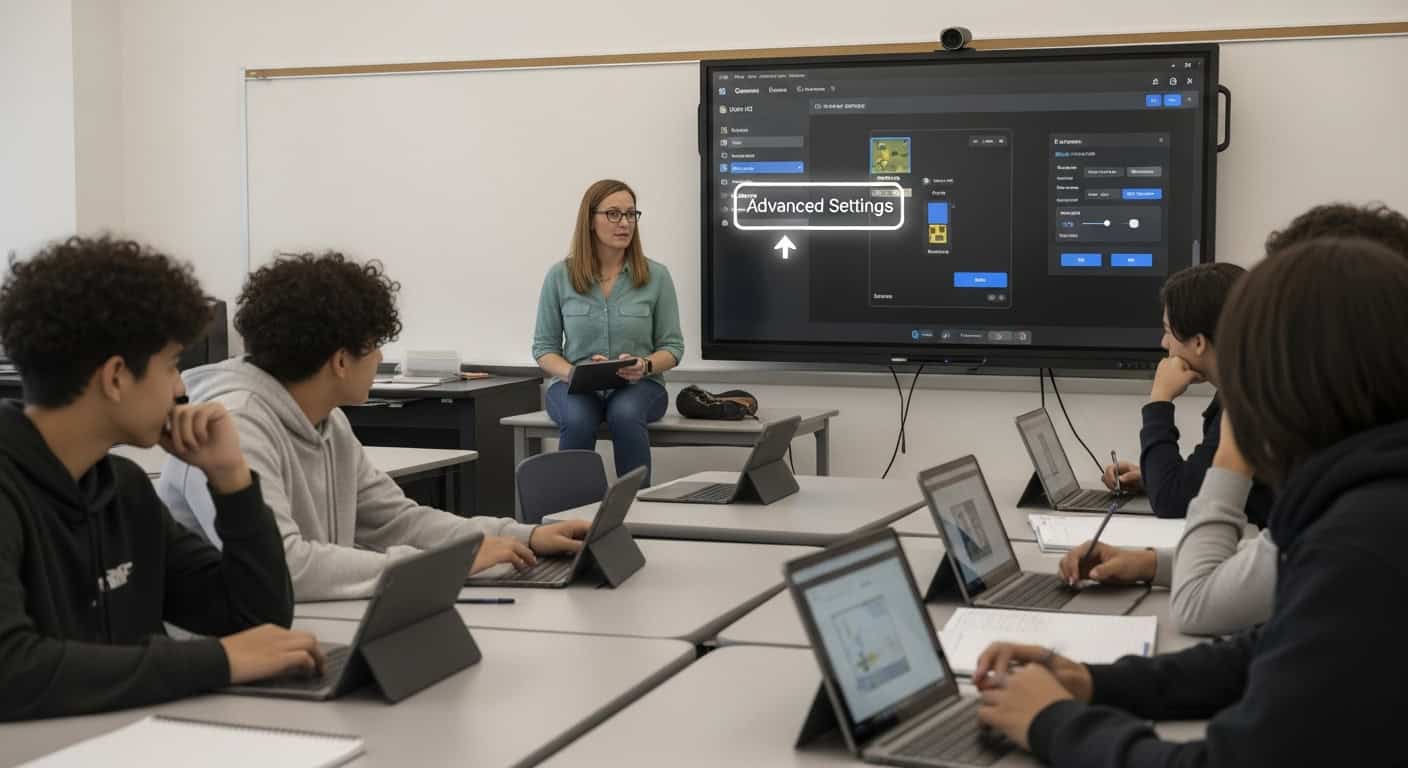
I used to think I was pretty good at Gimkit. I had my kits, I had my routines, and kids loved the games. Then one random Tuesday, I accidentally clicked the tiny “Advanced” arrow at the bottom of the game creation screen and realized I’d been playing on easy mode for three straight years.
What I found in there wasn’t just extra options; it was the difference between a fun review game and a precision learning machine that still has my students screaming three years later.
Here’s every advanced setting worth touching, ranked by how much they actually move the needle in a real classroom.
1. Power-Up Pricing – The Single Most Important Setting in the Entire App
Default prices are terrible. Kids blow through the shop in eight minutes and then coast.
My current pricing that survives even my worst-behaved 9th period:
- Streak Bonus: $800 (cheap, encourages speed)
- 2x Multiplier: $4,200 (the holy grail everyone chases)
- Insurance: $2,100 (kids buy this religiously before hard questions)
- Freeze: $8,500 (expensive enough that it’s a big decision)
- Handout: $15,000 (basically never used, which is good)
- Everything else: turned off
The result? The shop stays relevant for the full 35 minutes. Kids do actual math in their heads: “If I buy insurance now, I’ll have $2,300 left… but if I wait for a streak I can afford the 2x…” That’s higher-order thinking disguised as fake money.
Pro move: Save these as your default settings once. Every new game you create inherits them. I haven’t touched power-up prices in two years.
2. Question Value & Time Limit Per Question
The default is $10 per correct answer and 20 seconds.
I changed this based on the content:
- Vocabulary: $15 per question, 18 seconds (fast recall)
- Multi-step math: $25 per question, 40 seconds (they need time to think)
- Reading comprehension passages: $40 per question, 60 seconds
Higher value + longer time = kids slow down and actually read. Lower value + shorter time = pure speed practice.
I used 60-second questions with Gatsby excerpts last year. Accuracy dropped from 91% to 73% at first, then climbed to 96% by the third game because they finally learned to read the passage instead of skimming.
3. “Late Join” Settings
You can choose:
- Late joiners start with $0 (default)
- Late joiners start with average cash.
- Late joiners start with a custom amount.
I always set it to “average cash” now.
Used to be brutal: kid walks in five minutes late, starts at $0, never catches up, checks out for the rest of the period.
Now they join with whatever the class average is and have a fighting chance. Engagement stays high, and no one feels permanently behind.
4. Streak Bonus Multiplier Curve
This one is buried deep, but changes everything.
Default: every 5 correct answers in a row = bonus cash, scaling up.
You can change:
- How many questions trigger a streak bonus (I use every 4 instead of 5)
- How much does the bonus increase each time
- Whether streak bonuses stack with power-up multipliers
I set mine so a 20-question streak pays out almost $100,000. Kids will literally coach each other through questions because they don’t want to break the streak. I’ve watched honor-roll students stand up and explain verb conjugations to struggling classmates just to keep a streak alive.
That’s the kind of peer teaching you can’t buy.
5. Randomization Options (The Anti-Cheating Suite)
Three separate toggles:
- Randomize question order (always on)
- Randomize answer choice order (always on)
- Randomize questions per student (holy grail)
That last one — “Different questions for each student” — is Pro only and worth the entire subscription by itself.
Every kid gets the questions in a different order AND sees different questions at different times. Whispering answers become useless. I turn this on for any review the day before a test. The room gets eerily quiet because they actually have to know the content.
6. Auto-End Game Conditions
You can set the game to end when:
- Time runs out (default)
- Someone reaches a cash goal.
- The class reaches a collective cash goal.
- A certain number of questions have been answered.
I use “collective cash goal” for Boss Battle mode. Set it to $10 million total. The entire class has to work together to hit it before time runs out. The coordination and screaming when they’re at $9.4 million with 90 seconds left is something I can’t replicate any other way.
7. Music & Sound Effects (Yes, This Is Advanced and Yes, It Matters)
I turn the music off completely. My room is loud enough.
But I leave sound effects on because:
- The “cha-ching” when you get one right is dopamine.
- The freeze sound makes kids actually jump.
- The betrayal sound in Trust No One is half the fun.
I had a kid once hear the betrayal sound, look up, and go “WHO DID THAT” so loud the class next door complained. Worth it.
8. Assignment vs Live Game Default Settings
This one trips everyone up.
In your account settings (top right → Settings → Game Defaults), you can save separate defaults for live games and assignments.
I have:
- Live games: high power-up prices, late joiners get average cash, music off
- Assignments (homework mode): $1.8 million cash goal, no time limit, must complete by Thursday night
Set these once, and every new game or assignment inherits your perfect settings. I forgot this existed for two years and re-typed everything every single time like a caveman.
9. The “Allow Power-Up Trading” Toggle (2024 Addition)
New this year. Kids can trade power-ups with teammates in team modes.
I tried it once. Never again. The trading screen became a black market, and half the teams spent more time negotiating than answering questions.
Your mileage may vary, but for me, it was chaos without benefit.
10. Custom Join Message
Tiny feature, huge impact.
You can write a short message that appears when students join the waiting room.
Mine says:
“Use your first name only. Funny names get kicked. You know who you are.”
Saves me from having to say it out loud every single time.
The Settings I Never Touch (Because They’re Perfect or Pointless)
- Handout power-up: too expensive, breaks the economy
- “Show player avatars”: slows loading on old Chromebooks.
- “Allow name changes mid-game”: recipe for disaster.
- 3D game modes: fun once a year, terrible for content
How I Set Up a New Game in 2025 (Under 60 Seconds)
- Click “Play Live” on my favorite kit.
- Choose mode (usually Classic or Trust No One)
- Scroll to the bottom, click “Use my default settings.”
- Adjust cash goal if needed (Boss Battle only)
- Create game
Done. All my perfect advanced settings load automatically.

The Honest Truth
Most teachers never touch these settings. They click “Play Live,” accept defaults, and wonder why their games feel flat after ten minutes.
The advanced settings aren’t advanced because they’re complicated. They’re advanced because they let you control the psychology of the game: how long kids stay engaged, how much they think versus guess, how much they help each other, and how fair it feels when someone joins late.
I spent three years tweaking this one painful game at a time. My students paid the price with some truly terrible sessions.
Now every game feels custom-built for my exact class, my exact content, and my exact sanity level that day.
Open the advanced settings tomorrow. Change one thing. See what happens.
By the third tweak, you’ll wonder how you ever taught without them.
I sure do.