
I still remember the first Gimkit quiz I ever made. It was 11 PM on a Sunday, I had twenty-three vocabulary terms to review the next morning, and I was so tired I accidentally made “photosynthesis” the correct answer for every single question.
My sixth-period class figured it out by question four. They thought it was hilarious. I wanted to crawl under my desk.
That was five years ago. Since then, I’ve created somewhere around 400 Gimkit quizzes—probably more—across three different subjects and two schools. I’ve made every mistake you can possibly make, figured out shortcuts I wish someone had told me earlier, and watched this platform evolve from a scrappy startup into something half the teachers in my building actually use.
If you’re staring at Gimkit for the first time, wondering how any of this works, or if you’ve dabbled but never felt confident, this is the tutorial I wish existed when I started. No fluff, no theoretical stuff—just the actual process of building a quiz that works.
Getting Started: What You Need Before You Touch Gimkit
Here’s something most tutorials skip: you need to do a little prep work before you ever log in. I learned this the hard way after spending forty-five minutes staring at a blank kit, trying to remember what I even wanted to quiz students on.
Gather your content first. Open your textbook, notes, or whatever resource contains the material you’re covering. I usually jot down 15-25 concepts I want students to review—nothing formal, just a quick list on scrap paper.
For vocabulary-heavy content, I’ll literally type terms and definitions into a Google Doc first, then copy them over. For concept-based quizzes, I draft questions in a separate document where I can think without the pressure of the Gimkit interface staring back at me.
Decide on your question count. The sweet spot for most classroom uses is 20-40 questions. Fewer than 15 students see repeats too quickly, which kills engagement. More than 50 and you’ve created a monster that takes forever to build and overwhelms students with variety.
Know your game mode in advance. Different modes work better with different question types. If you’re planning to use Trust No One, you want questions where wrong answers are genuinely tempting—otherwise the impostor is too obvious. If you’re doing Floor is Lava, keep questions shorter so students can read and answer quickly.
Step 1: Creating Your Account and Accessing the Dashboard
Head to gimkit.com and sign up. Teachers get a free account with limited features or can spring for Gimkit Pro, which unlocks everything. The free version is honestly pretty generous for trying things out, but if you’re planning to use this regularly, Pro is worth the investment—especially for access to all the game modes.
Once you’re logged in, you’ll land on your dashboard. It looks different from what it did even a year ago; they’ve redesigned things a few times. But the basic layout remains: your existing kits on the left, options to create new ones, and a discovery section where you can find kits other teachers have made.
Click “New Kit,” and you’re off to the races.
Step 2: Setting Up Your Kit Basics
The first screen asks for basic information:
Kit Title: Name it something you’ll actually recognize later. I cannot stress this enough. “Spanish Quiz” means nothing six months from now when you have forty Spanish quizzes. “Chapter 4 Preterite vs Imperfect Conjugation” is annoying to type, but it will save you when you’re frantically searching at 7:45 AM.
Subject and Topic Tags: These help with organization and make your kit searchable if you ever choose to make it public. I tag everything, even though I keep most kits private, just for my own sanity.
Cover Image: Optional, but I’ve found that adding relevant images helps me (and students) identify kits quickly. A picture of a beaker for chemistry, the American flag for US History. Takes two seconds and genuinely helps.
Step 3: Adding Questions—The Core of Everything
Here’s where you’ll spend 90% of your time. Gimkit gives you two main question formats:
Multiple Choice Questions
Click “Add Question,” and you’ll see a simple interface: question text at the top, correct answer in one box, and wrong answers below.
Writing the question: Keep it clear and concise. I aim for one to two sentences maximum. Students are playing a game, not reading an essay. If your question requires a full paragraph of context, consider breaking it into smaller pieces or reconsidering whether it fits the format.
Example of a solid multiple-choice question:
- Question: Which organelle is responsible for producing ATP in the cell?
- Correct Answer: Mitochondria
- Wrong Answers: Ribosome, Nucleus, Cell membrane
Writing wrong answers (distractors): This is where beginners often stumble. Your wrong answers need to be plausible, not obviously ridiculous. If the correct answer is “George Washington” and your wrong answers are “Mickey Mouse,” “A cheeseburger,” and “My left shoe,” students don’t have to know anything to get it right.
Good distractors are things students might actually confuse with the correct answer:
- Other vocabulary terms from the same unit
- Common misconceptions you’ve seen before
- Answers that would be correct for a related but different question
I typically include three wrong answers per question. You can do fewer, but three creates enough uncertainty to make students actually think.
Text Entry Questions
These require students to type their answer exactly. They’re powerful for certain content—spelling words, math problems with numerical answers, fill-in-the-blank vocabulary.
The catch: Gimkit needs an exact match (though you can set it to accept close spellings). This means you need to anticipate variations. If the answer is “mitochondria,” will students type “Mitochondria” with a capital M? What about “the mitochondria”? You can add multiple accepted answers to account for this, but it takes extra thought.
I use text entry sparingly—maybe 20% of my questions at most. They’re fantastic for spelling practice or numerical answers, but they create frustration when students know the concept but get marked wrong for a typo.
Pro tip: For math answers, be explicit in your question about format. “Write your answer as a decimal” or “No dollar signs needed” saves a lot of student frustration.
Step 4: Importing Questions (The Huge Time-Saver Nobody Talks About)
Here’s where experienced Gimkit users separate from beginners: you don’t have to type every question manually.
Copy from Quizlet
If you already have Quizlet sets for your content (and honestly, who doesn’t at this point), Gimkit can import them directly. Click the import option, paste your Quizlet URL, and watch as your flashcards transform into quiz questions.
The imported questions default to “What is [definition]?” with the term as the answer. It works great for vocabulary, less great for conceptual content. You’ll probably want to edit some questions after import to make them more engaging or clearer.
Spreadsheet Import
You can also upload from a spreadsheet—CSV or copy-paste from Excel/Google Sheets. The format is simple: questions in column A, correct answers in column B, wrong answers in columns C, D, and E.
I keep a running spreadsheet of questions for each unit I teach. At the start of the year, I spent a few hours building this bank. For the rest of the year, creating a new Gimkit takes about five minutes because I’m just importing and tweaking.
If you’re creating a lot of quizzes, this system is absolutely worth the upfront investment.
Duplicate and Modify Existing Kits
Made a kit last semester that’s almost what you need? Duplicate it from your library and edit from there. I do this constantly for units I’ve taught before. The content evolves each year, but I’m not starting from scratch.
Step 5: Organizing and Reordering Questions
Once you have questions in your kit, you can drag them to reorder them. This matters less than you might think—Gimkit randomizes question order for students anyway—but it helps keep your kit organized while editing.
What actually matters is reviewing for balance:
- Are all my questions roughly the same difficulty, or is there a mix?
- Do I have any duplicate concepts? (Easy to accidentally include the same content phrased two different ways)
- Are my wrong answers distinct enough from each other?
I always do a quick scroll-through before saving, checking for typos or weirdly worded questions. You’d be amazed at what you catch on a second pass.
Step 6: Previewing Before You Launch
This step is crucial, and I skipped it for embarrassingly long. Click the Preview button to see what students will experience.
Go through at least 8-10 questions as if you were a student. Check that:
- Question text displays correctly (no cut-off sentences)
- Images load properly if you used any
- Wrong answers aren’t accidentally correct (yes, this happens)
- The correct answer is actually marked as correct.
I once ran an entire class period before realizing I’d marked the wrong answer correct on three questions. Those poor kids kept getting “wrong” despite being right. Preview prevents trauma.
Step 7: Saving and Publishing Your Kit
Click Save, give it a final title check, and you’re done with creation. Your kit is now saved to your library.
Public vs Private: You can choose whether to make your kit publicly discoverable or keep it private. I keep most of mine private—not because I’m precious about them, but because my questions are specifically tailored to my curriculum and might not make sense to outside teachers.
If you’ve made something genuinely useful and universal, though, making it public is a nice way to give back. I’ve found some amazing kits made by random teachers in other states.
Step 8: Launching a Game
Creating the kit is half the battle. Now you need to actually run it with students.
From your library, click on the kit you want to use, then “Play Live.” You’ll be asked to choose a game mode:
Classic: The standard experience. Students answer questions, earn in-game money, and buy upgrades. Great for general review.
Team Mode: Students are grouped and collaborate. Good for smaller classes or when you want peer discussion.
Trust No One: The Among Us-inspired mode where one player is an impostor. Incredible for engagement, but requires longer class time.
Floor is Lava: Last player standing format. Quick rounds, high energy.
There are others—Humans vs Zombies, Capture the Flag, etc.—but those four are my workhorses.
After selecting a mode, you’ll get a game code. Share it with students (I project mine on the board). They go to gimkit.com/join, enter the code, and they’re in.
Step 9: Running the Game—Teacher Tips
Once students are playing, your job isn’t over. Here’s what I do during a live Gimkit:
Monitor the leaderboard. You can see who’s in first, who’s struggling, and who might have disconnected. If a usually-strong student is near the bottom, there might be a tech issue, or they might have misconceptions you need to address later.
Watch the question report in real time. Gimkit shows you which questions are getting answered correctly and which are stumping people. If 80% of the class misses the same question, that’s telling you something important about your instruction.
Walk the room. Yes, even during Gimkit. I circulate to check that students are actually engaged, not just clicking randomly or (horror of horrors) using their phones to Google answers. A little presence goes a long way.
Don’t end too abruptly. Give a 2-minute warning before closing the game. Few things upset teenagers more than getting cut off right when they were about to hit first place.
Step 10: After the Game—Using the Data
This is the part that too many teachers skip entirely. Gimkit gives you actual data. Use it.
After the game ends, check your reports. You can see:
- Overall accuracy rates
- Which questions were missed the most
- Individual student performance
I use this to inform what I reteach. If 75% of the class got the mitochondria question right but only 30% got the cell membrane question, that’s a clear signal about where to focus future instruction.
Some teachers export this data into gradebooks. I’m more informal—I use it as formative assessment rather than graded work. But the option exists if you need documentation.
Common Mistakes and How to Avoid Them
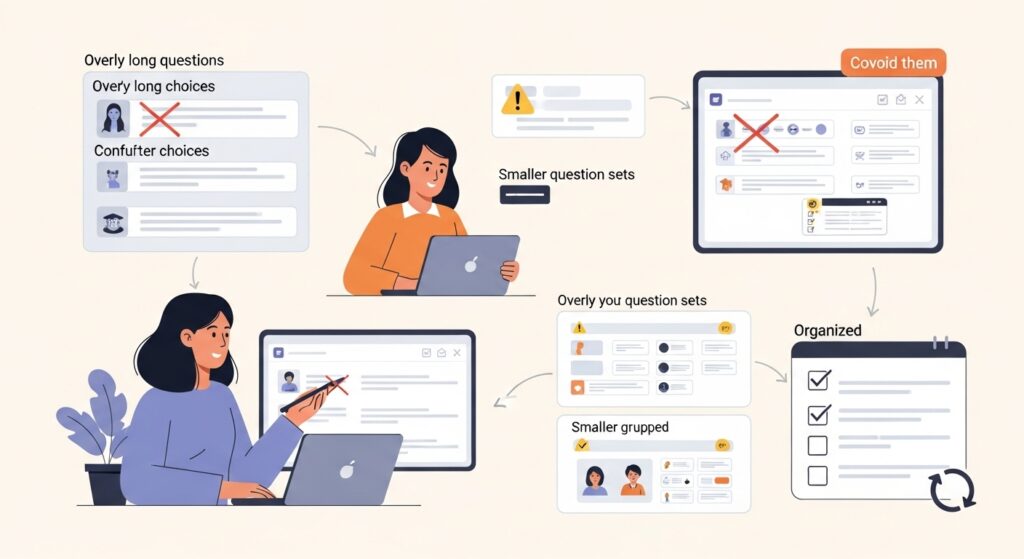
Mistake 1: Making questions too long. Students are playing a game. They’re not going to carefully parse a 50-word question stem. Keep it tight.
Mistake 2: Wrong answer choices that are too similar. If your distractors are “Cell membrane,” “Cell wall,” and “Cell covering,” you’re creating frustration, not learning.
Mistake 3: Not testing the kit first. Preview. Preview. Preview.
Mistake 4: Creating one massive kit instead of smaller, focused ones. A 100-question kit sounds impressive, but it becomes unwieldy. Better to have five 20-question kits for different subtopics.
Mistake 5: Never updating old kits. I revisit my kits each year, cutting questions that weren’t working and adding new ones based on what I observed in class.
Advanced Techniques Once You’re Comfortable
After you’ve got the basics down, explore these:
Audio questions: You can add audio clips for language classes, music theory, or anything where listening is part of the content.
Image-based questions: Show a diagram and ask students to identify parts. Great for science, geography, and art history.
Timed challenges: Some modes let you adjust time pressure. Useful for specific skills like mental math.
Assignment mode: Gimkit can be assigned as homework, with students playing at their own pace for completion credit. Different energy than live play, but useful.
Final Thoughts
Building your first Gimkit quiz takes maybe 30 minutes if you’re going slow. Your tenth takes 10 minutes. By your fiftieth, you’ll have a library of content you can mix, match, and reuse for years.
The platform isn’t perfect—the interface can be finicky, the premium features require an investment, and some game modes are better than others. But when I watch a room full of teenagers voluntarily reviewing Civil War battles because they want to beat their friend on the leaderboard, I’m reminded why this tool has earned its place in my teaching practice.
Start with one kit. Just one. Pick a unit you’re teaching next week, throw together 20 questions, and see what happens.
I promise the results are worth that Sunday-night learning curve.